
Start with the symptoms, not a replacement console
A console that stops working does not always need to be replaced. A damaged connector, restricted airflow, a failing storage drive, or a worn controller component can interrupt an otherwise usable gaming setup. The useful first step is to describe exactly what happens: whether the power light comes on, whether the television detects an input, and whether the problem appears immediately or only after playing for a while.
Make a short note of error codes, unusual sounds, recent power interruptions, and any changes to the setup. Mention a dropped controller, an accidental spill, or a previous repair. These details help narrow down possible causes, but they do not replace a physical assessment. Avoid repeatedly restarting a console that smells burnt, becomes unusually hot, or has been exposed to liquid. Disconnect it and request advice before attempting to use it again.
When the television shows no signal
A blank screen can make a working console appear completely dead. Before assuming the HDMI port needs replacing, check that the television is set to the correct input. With the console switched off, try another known-working HDMI cable and another television input. If possible, test the console with a different display. This helps separate a cable or screen problem from a fault inside the console.
Inspect the connector visually without inserting tools. A loose socket, bent contacts, or a cable that only works at an angle may point towards physical damage. Do not force the cable or repeatedly move it while the console is powered. Port replacement involves delicate board connections, and a damaged socket may also affect nearby components. A proper assessment should establish whether the connector alone is responsible or whether the display circuitry needs attention.
Loud fans, overheating, and sudden shutdowns
Some fan noise is normal during demanding games, but a noticeable change deserves attention. Dust around vents, a console squeezed into a closed cabinet, or a blocked air outlet can restrict cooling. Keep the unit on a stable surface with space around the ventilation openings. Soft furnishings and tightly packed entertainment shelves can trap heat, especially during longer sessions.
If overheating continues, internal cleaning or inspection of the cooling system may be appropriate. The fan, heatsink, and thermal interface work together, so treating only one symptom may miss the cause. Do not spray household cleaners into the vents or open the casing without the right skills and tools. Describe whether the fan becomes loud immediately, whether a temperature warning appears, and how long it takes before a shutdown. Ask what cleaning or parts work is included in the proposed service.
Power problems and startup failures
A console that will not switch on can have a different fault from one that lights up and immediately turns off. Check the wall socket and the external power cable with the equipment disconnected before reconnecting it securely. Avoid damaged plugs, loose adapters, and overloaded extension leads. If a circuit trips or the console produces a burning smell, stop using it rather than trying repeated power cycles.
A blinking light or a startup loop is a symptom, not a complete diagnosis. Power delivery, storage, system software, and board components can produce overlapping behaviour. An assessment helps identify which route is appropriate before parts are replaced. Tell the technician whether the console beeps, how the light changes, and whether it displays an error. Do not attempt to open or repair an internal power supply yourself; it requires appropriate electrical handling and expertise.
Getting control back: sticks, buttons, and charging
A drifting analogue stick can move your character even when you are not touching the controller. Sticky buttons, an unreliable trigger, or a charging connection that cuts out can be just as disruptive. Check whether the issue occurs in more than one game, and test a known-working data-capable USB cable when investigating charging or connection problems. A charging-only cable may not support the pairing step you expect.
Controller repair depends on the affected component and the overall condition of the unit. Stick modules, charging ports, batteries, and button contacts need different checks. Mention any impact or liquid exposure and identify whether one control or several controls are affected. Before approving a repair, compare the quote with the cost and condition of a replacement controller. Ask how the repaired functions will be checked, including stick movement, button response, charging, and wireless connection where relevant.
Disc errors, freezing, and storage concerns
A game that refuses to load can be caused by the disc, the optical drive, the installation, or the storage device. Inspect the disc for visible damage and test another compatible disc if one is available. Do not force a disc into the slot or use improvised objects to remove one. Explain whether the drive accepts and ejects discs normally, whether it makes unusual sounds, and whether the same error appears with multiple games.
Frequent freezing, slow loading, or repeated storage errors can also require attention. If the console still works, back up important saved data before arranging service. Some troubleshooting steps, drive replacements, and system reinstalls can erase local content. Ask about the effect on your saves and installed games before agreeing to work. Data recovery cannot be assumed, and a repair should not be presented as a guarantee that every file will remain available.
What to prepare before handing over your console
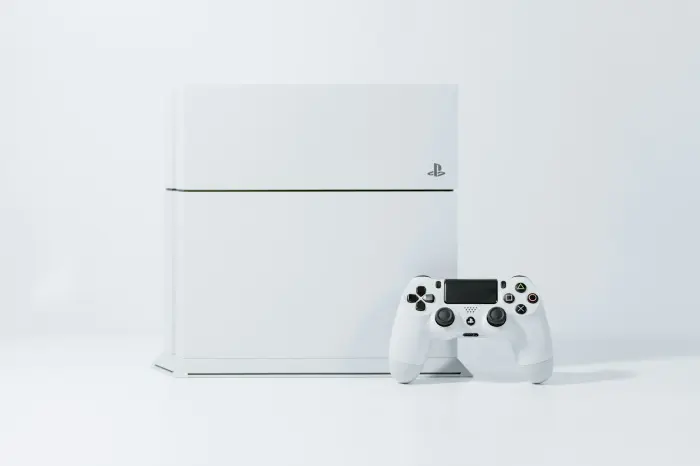
Identify whether you have the original model, Slim, or Pro, and include any model details you can safely read from the casing. Record the symptoms in plain English and note how often they happen. Remove accessories and discs where possible, and ask which cables or controllers are actually needed for the assessment. Bringing only the relevant items makes the handover easier to track.
Protect your account information as well as the hardware. Back up saves if possible, and never send your account password through an enquiry form. If access to a particular game is necessary to reproduce a fault, discuss a suitable testing method first. Keep a record of what you hand over and ask for the assessment process, any applicable diagnosis charge, and the expected next update. Confirm location and visiting arrangements by phone before travelling.
Understanding your repair quote
A useful quote explains the diagnosed issue, the proposed work, the parts involved, and the total expected cost. Repair times vary with the fault, workload, and availability of suitable components. Ask for an estimate based on the actual assessment rather than assuming that every problem can be fixed during the same visit. If further faults are discovered, request an updated explanation before approving additional work.
Ask whether the proposed part is new, refurbished, or otherwise sourced, and what testing is planned afterwards. Any warranty terms, exclusions, and charges should be confirmed directly rather than inferred from general repair advice. The aim is to make a clear decision about a repair that suits the age, condition, and value of your equipment. For questions or an assessment request, contact F2 Technologies LLC on +97145864033 or use the enquiry form below.
Small checks. Better decisions.
Start with safe external checks, explain what you see, and confirm the work before proceeding. Whether the issue is your picture, power, cooling, storage, or controller, a clear assessment is the foundation of a sensible repair.
Describe your console problem